Getting started
Install
Install Earth Engine from the VS Code Marketplace or Open VSX. Open the Earth Engine view from the VS Code Activity Bar after installation.
Add and activate a profile
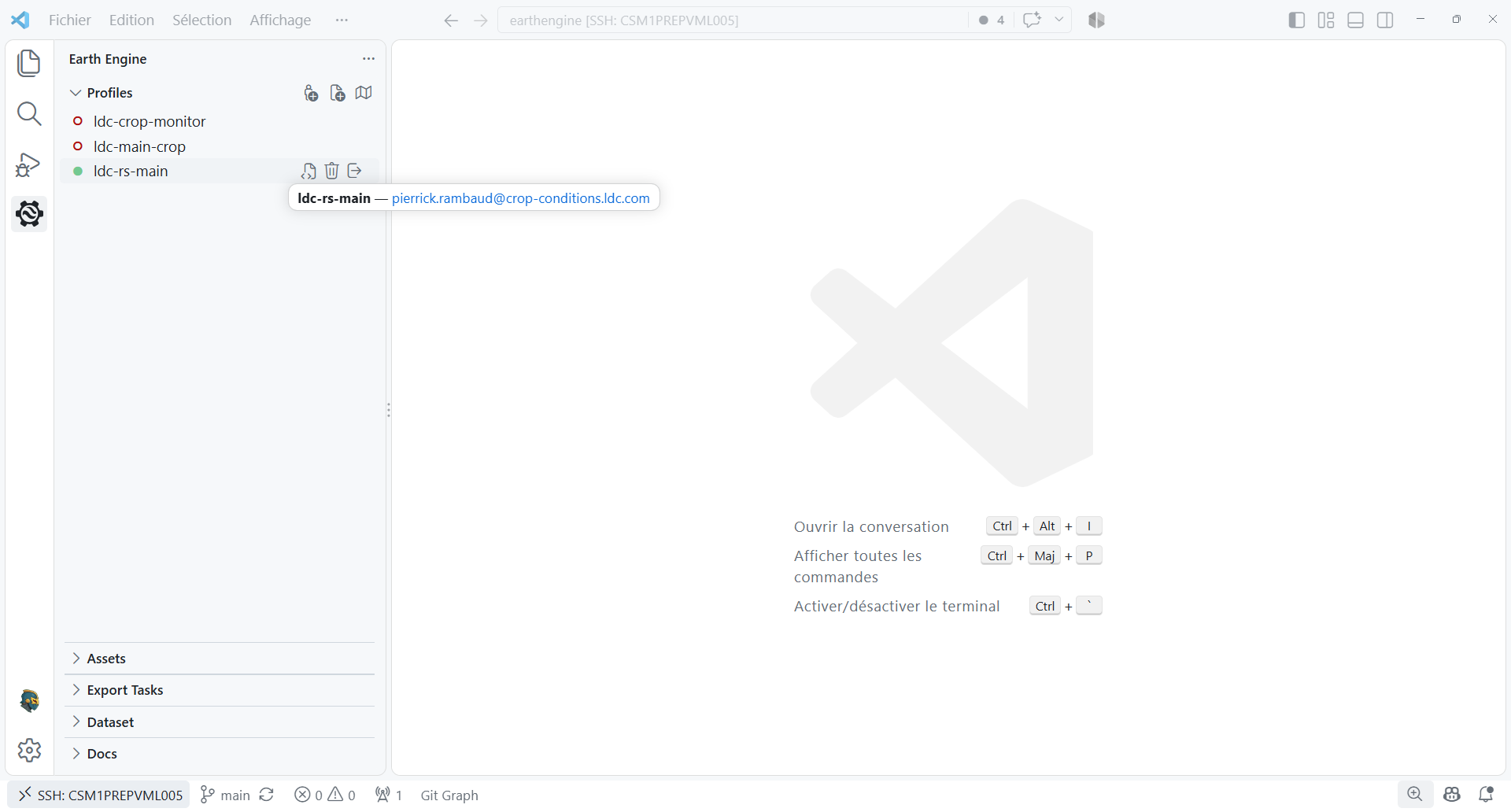
- In the Profiles view, select Add Profile to authenticate through Google OAuth.
- Alternatively, select Add Service Account and either choose a key file or paste the JSON content directly.
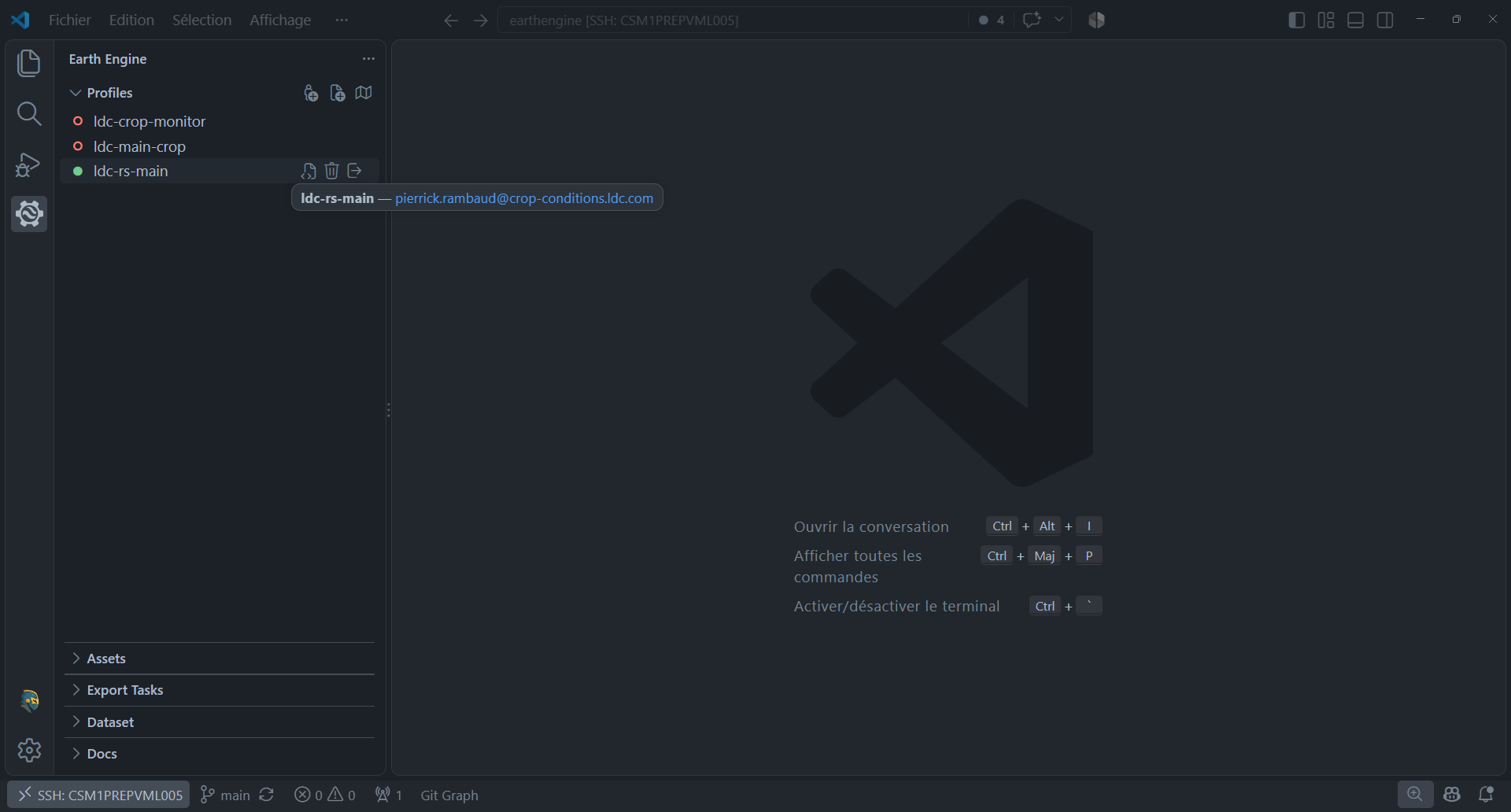
- Select a profile to make it active. The active profile is marked with a green status indicator.
- Assets, tasks, dataset metadata, and API docs load against the active profile's project.
Credentials are stored in ~/.config/earthengine/profiles/, matching the location used
by the Earth Engine CLI.
First workflow
You can run Earth Engine Python code from either a .py file or a .ipynb notebook. In
both cases, use a Python environment with the Earth Engine API and vscee installed:
python -m venv .venv
source .venv/bin/activate
python -m pip install earthengine-api vscee
The VS Code profile and the Earth Engine Python API both need valid authentication. In
the terminal for the selected Python environment, run earthengine authenticate and
follow the
Earth Engine authentication instructions.
Use a Cloud project registered for Earth Engine in the ee.Initialize call below.
Make sure the account and Cloud project used by Python match the active Earth Engine
profile in VS Code. If they differ, authenticate again with the matching account and use
that profile's project in ee.Initialize; otherwise the extension may not be able to
display your Python results.
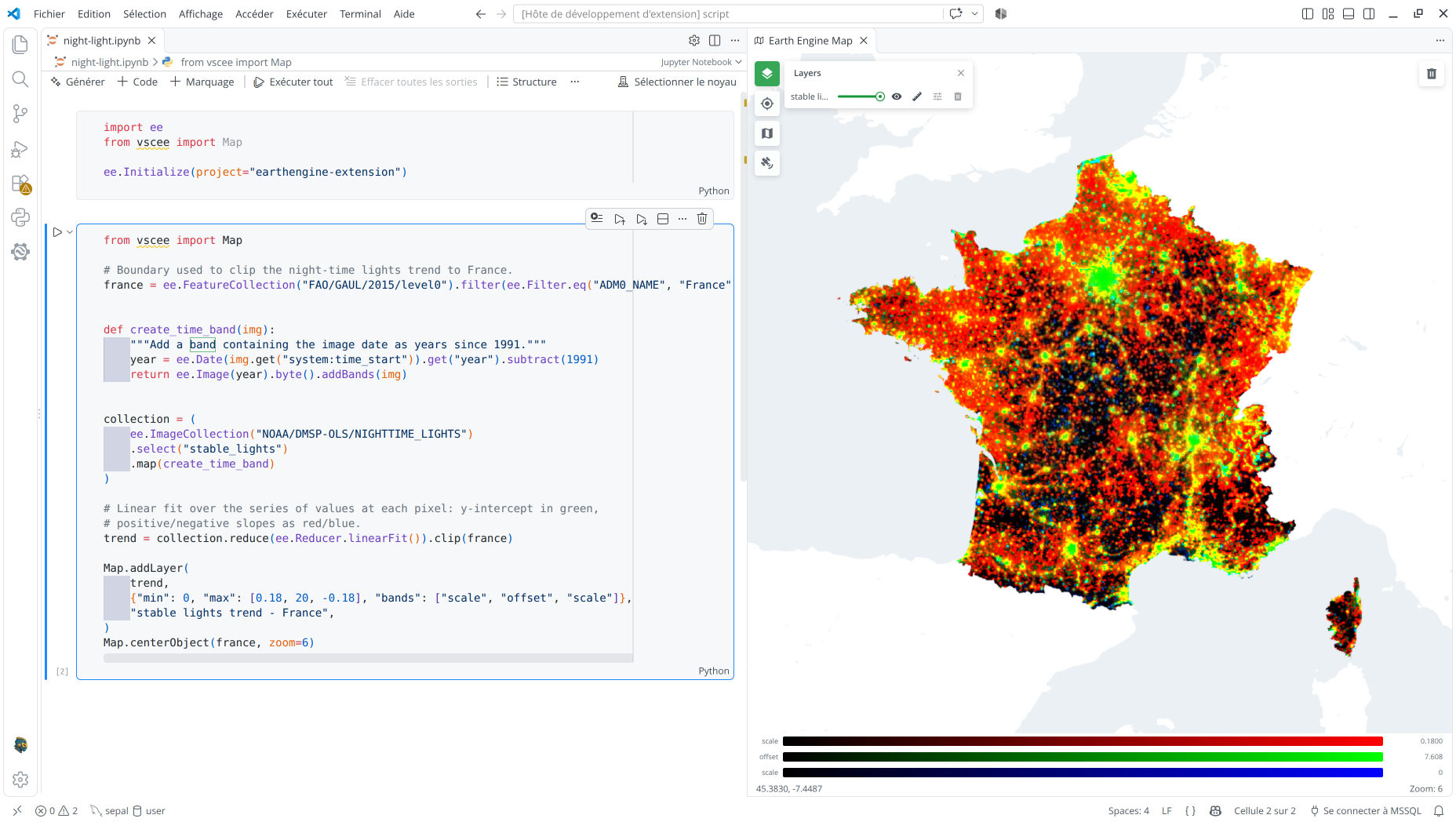
Create a Python file (or a notebook cell) and run this example. It computes the trend in nighttime lights and clips the result to France:
import ee
from vscee import Map

ee.Initialize(project="YOUR_CLOUD_PROJECT")  # Replace with your Earth Engine Cloud project.

france = (
    ee.FeatureCollection("FAO/GAUL/2015/level0")
    .filter(ee.Filter.eq("ADM0_NAME", "France"))
    .geometry()
)

def create_time_band(image):
    year = ee.Date(image.get("system:time_start")).get("year").subtract(1991)
    return ee.Image(year).byte().rename("year").addBands(image)

lights = (
    ee.ImageCollection("NOAA/DMSP-OLS/NIGHTTIME_LIGHTS")
    .select("stable_lights")
    .map(create_time_band)
)

trend = lights.reduce(ee.Reducer.linearFit()).clip(france)
Map.addLayer(
    trend,
    {"min": 0, "max": [0.18, 20, -0.18], "bands": ["scale", "offset", "scale"]},
    "Stable lights trend",
)
Map.centerObject(france, zoom=5)
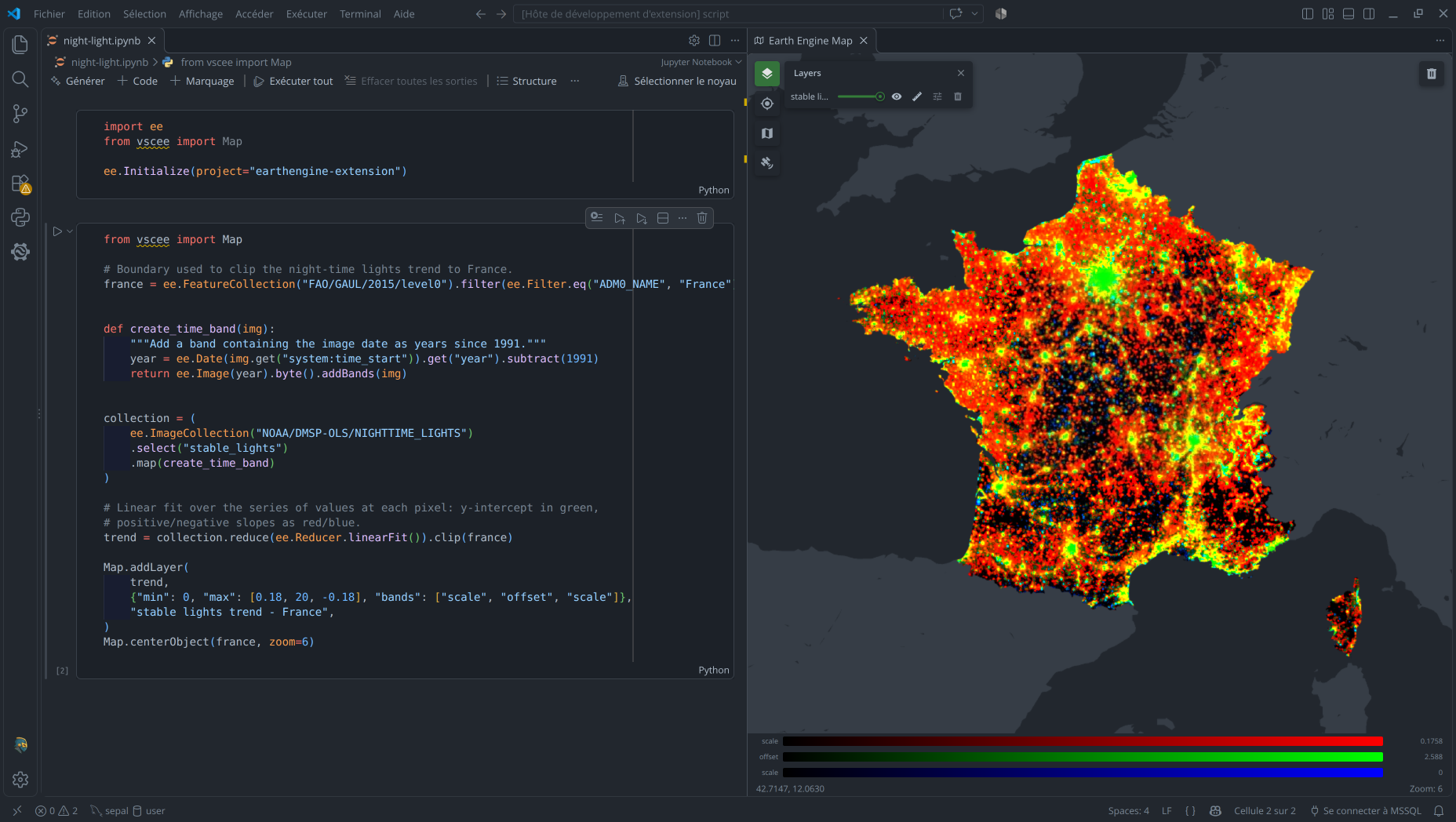
Running the code sends the layer to the Earth Engine map editor, which opens automatically. For a standalone script, run it with the selected environment's Python interpreter. For a notebook, run the cell with that environment selected as the kernel.
Once a profile is active, you can also use the Assets view to locate an image, collection, table, or folder. Open its context menu to preview metadata or manage it. Use the Export Tasks and Import Tasks views to follow operations started elsewhere in Earth Engine.
For a complete orientation, read Extension overview.