vscee Python library
vscee is the Python package that bridges scripts to the extension's
Interactive Map editor. It ships from the python/ folder
of this repository and is published to PyPI so it can be installed independently of the
extension.
Earth Engine graphs are built and serialised entirely on the Python side with the
official earthengine-api; vscee only forwards the serialised object and display
parameters to the extension over a local HTTP bridge. The extension host resolves tile
URLs with the EE JS client — the Python side never calls getMapId or resolves tiles
itself.
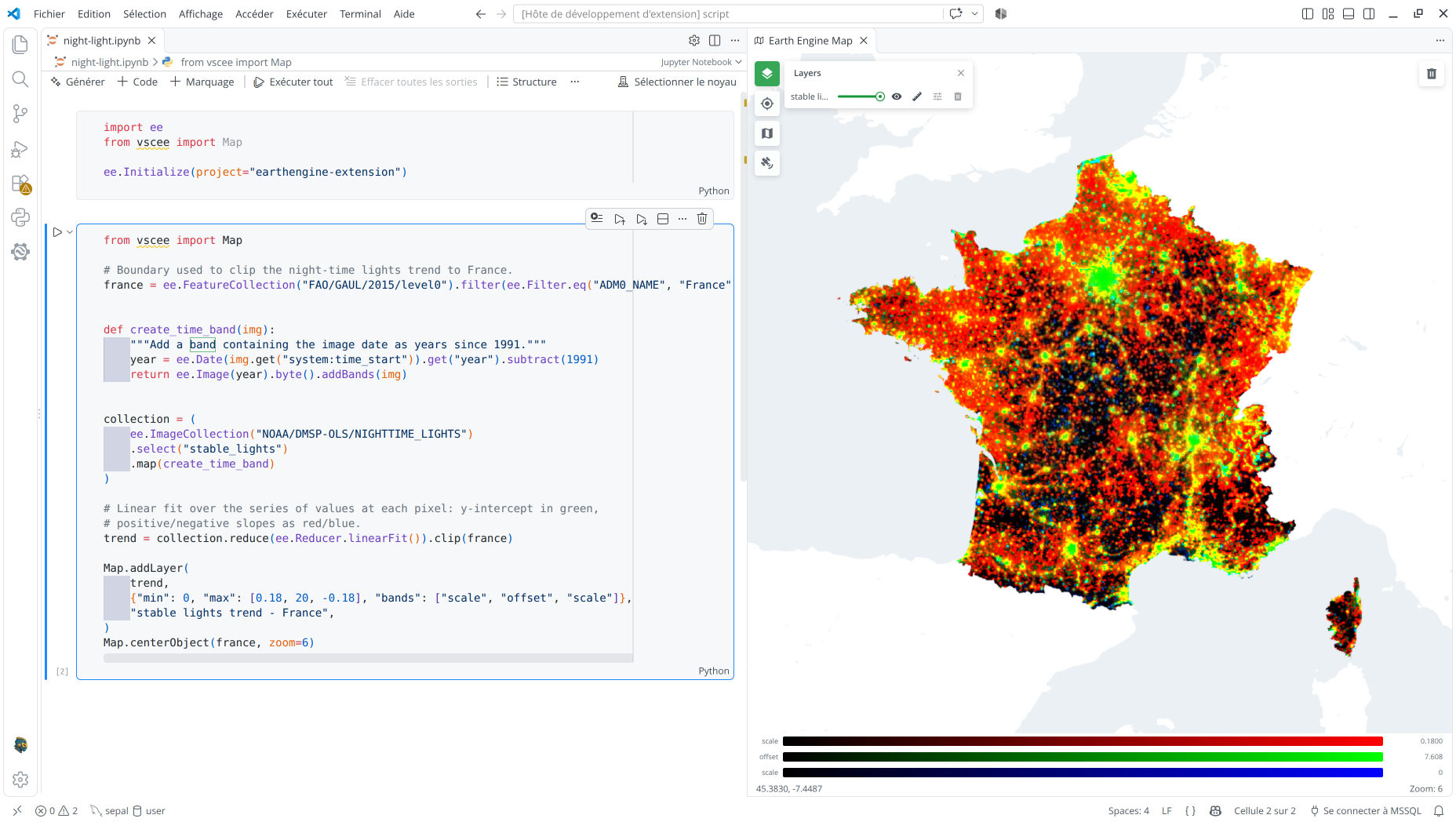
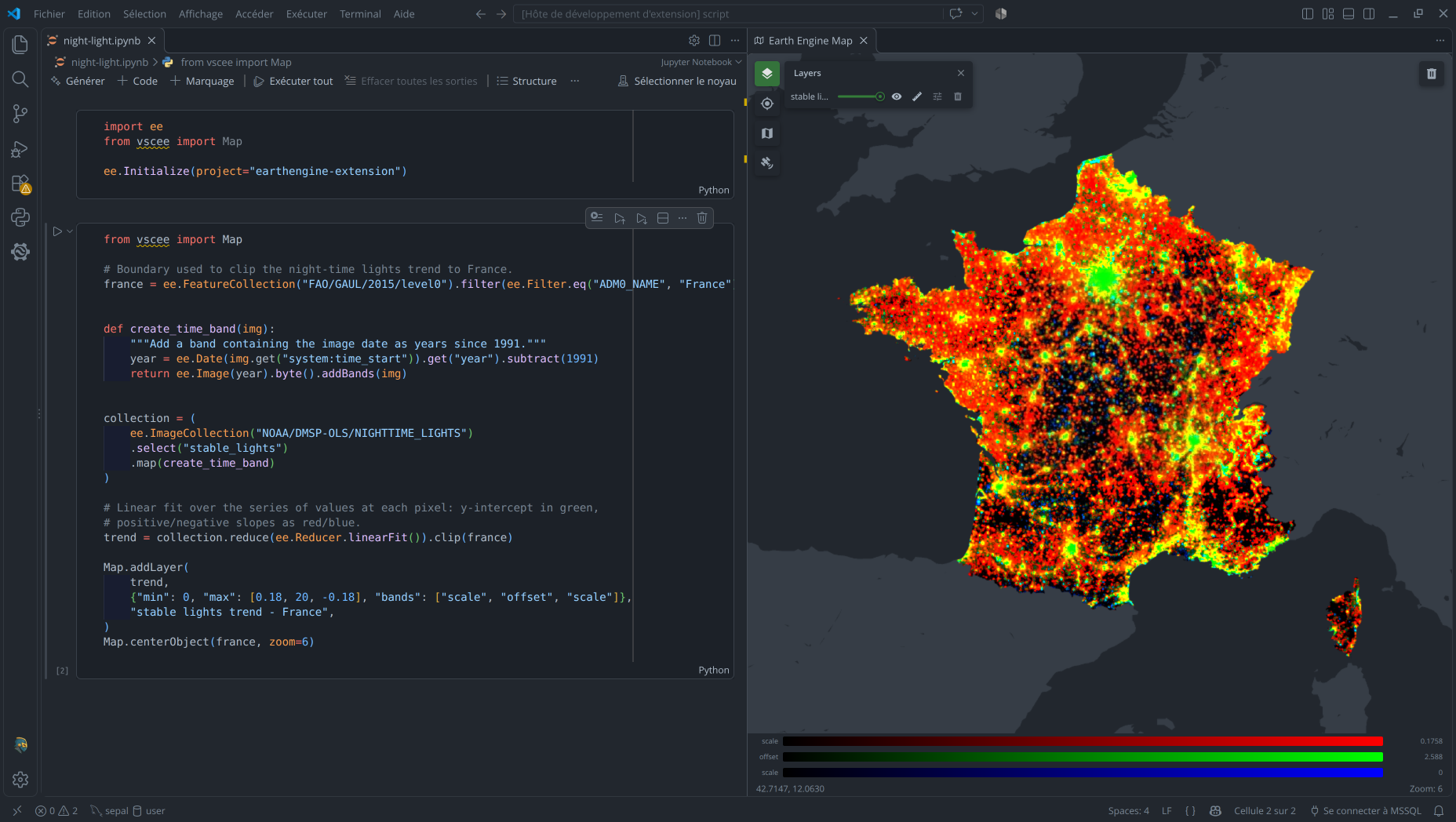
How it works
vscee never talks to Earth Engine servers on the extension's behalf. Each Map.* call
sends a JSON POST request to a local HTTP server the extension starts on
127.0.0.1:31415, exposing one endpoint per function (addLayer, centerObject,
setCenter, clear). The extension listens for these requests and forwards them to the
Leaflet Webview to update the map. If the extension is not running or the map panel has
not started the bridge server, calls fail silently and print a warning instead of
raising.
Install
pip install vscee
To install the version tracked by this repository instead of the PyPI release:
pip install -e python/
Requirements
- Python
>=3.9 - The Earth Engine extension installed and active in VS Code
- A valid
ee.Initialize(project=...)call before anyMap.*invocation
Select New Python Script from the Profiles view title action, or the
earthengine.newScript command, to generate a script prefilled with the initialisation
boilerplate and Map import shown below.
The Map module
vscee exposes a single Map module that mirrors the Map global of the Earth Engine
Code Editor. There is only one map panel in the extension, so Map is a module of
functions rather than a class you instantiate:
import ee
from vscee import Map

ee.Initialize(project="my-project")

image = ee.Image("COPERNICUS/S2_SR_HARMONIZED/20200101T100319_20200101T100321_T32TQM")
Map.addLayer(image, {"bands": ["B4", "B3", "B2"], "min": 0, "max": 3000}, "RGB")
Map.centerObject(image, zoom=10)
vscee intentionally supports more visualization parameters than the original Earth
Engine Code Editor. RGB and continuous parameters can be used as-is in both. HSV and
interval parameters are supported only by vscee and tools that have adopted this
convention; they are not supported by the original Code Editor.
Map.addLayer
Prototype
Map.addLayer(ee_object, vis_params=None, name=None, shown=True, opacity=1.0)
Add a layer to the map. ee_object accepts one of these two groups:
- Image: an
ee.Imageoree.ImageCollection(mosaicked automatically). Supports RGB, HSV, continuous, categorical, and interval rendering. - FeatureCollection: an
ee.FeatureCollection,ee.Feature, oree.Geometry; features and geometries are converted to a FeatureCollection automatically. Supports uniform styling and property-based continuous, categorical, and interval rendering.
The type parameter is optional for direct calls: breaks select intervals, values
select categorical, and a palette without either selects continuous. Otherwise images
use RGB and feature collections use uniform styling. Set type explicitly for HSV,
which cannot be distinguished from RGB by its bands. An empty dictionary selects the
first stored preset for an image when available; default selects a stored preset for
either source. Stored visualization_<number>_type properties still require a type.
The map's visualization editor exposes the same modes and parameters.
typeis optional for direct calls, but strongly recommended to make the intended rendering mode explicit.labelsis optional for both categoricalvalues/paletteand intervalbreaks/palette.- HSV cannot be inferred from its three bands: set
"type": "hsv"explicitly.
Image
RGB
To display an image with an RGB color scheme, assign one image band to each display
channel in red-green-blue order. Set min and max to define the input range stretched
across each channel's 0–255 display range. A single number applies to all three bands;
pass three values to set a separate range for each band. gamma is optional and adjusts
midtone brightness.
This example displays Sentinel-2 B4, B3, and B2 as red, green, and blue:
image = ee.Image("projects/earthengine-extension/assets/demo-image")
Map.addLayer(
    image,
    {
        "type": "rgb",
        "bands": ["s2_red", "s2_green", "s2_blue"],
        "min": 0,
        "max": 3000
    },
    "Sentinel-2 RGB - July 2026",
)
Map.centerObject(image, zoom=6)
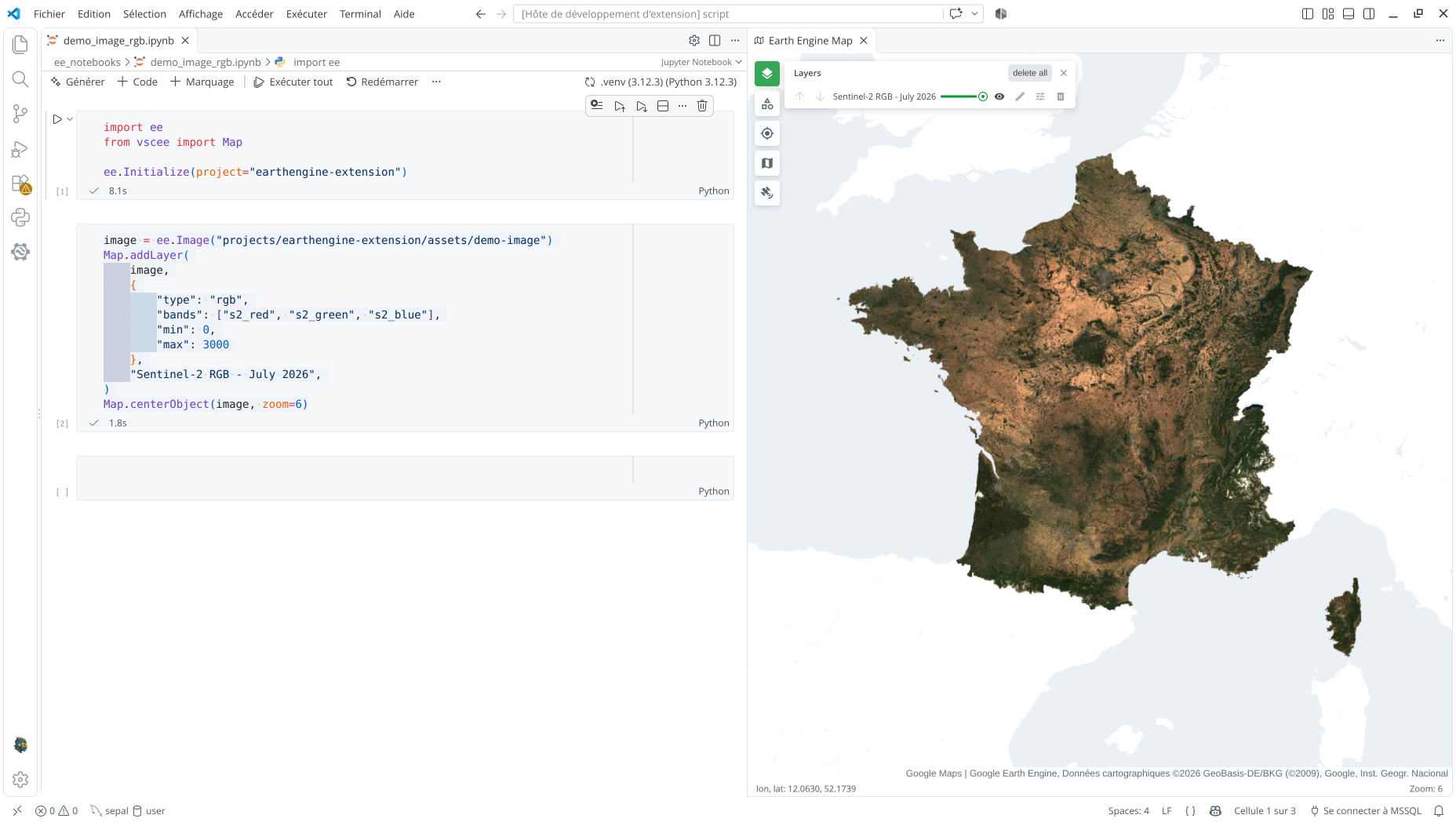
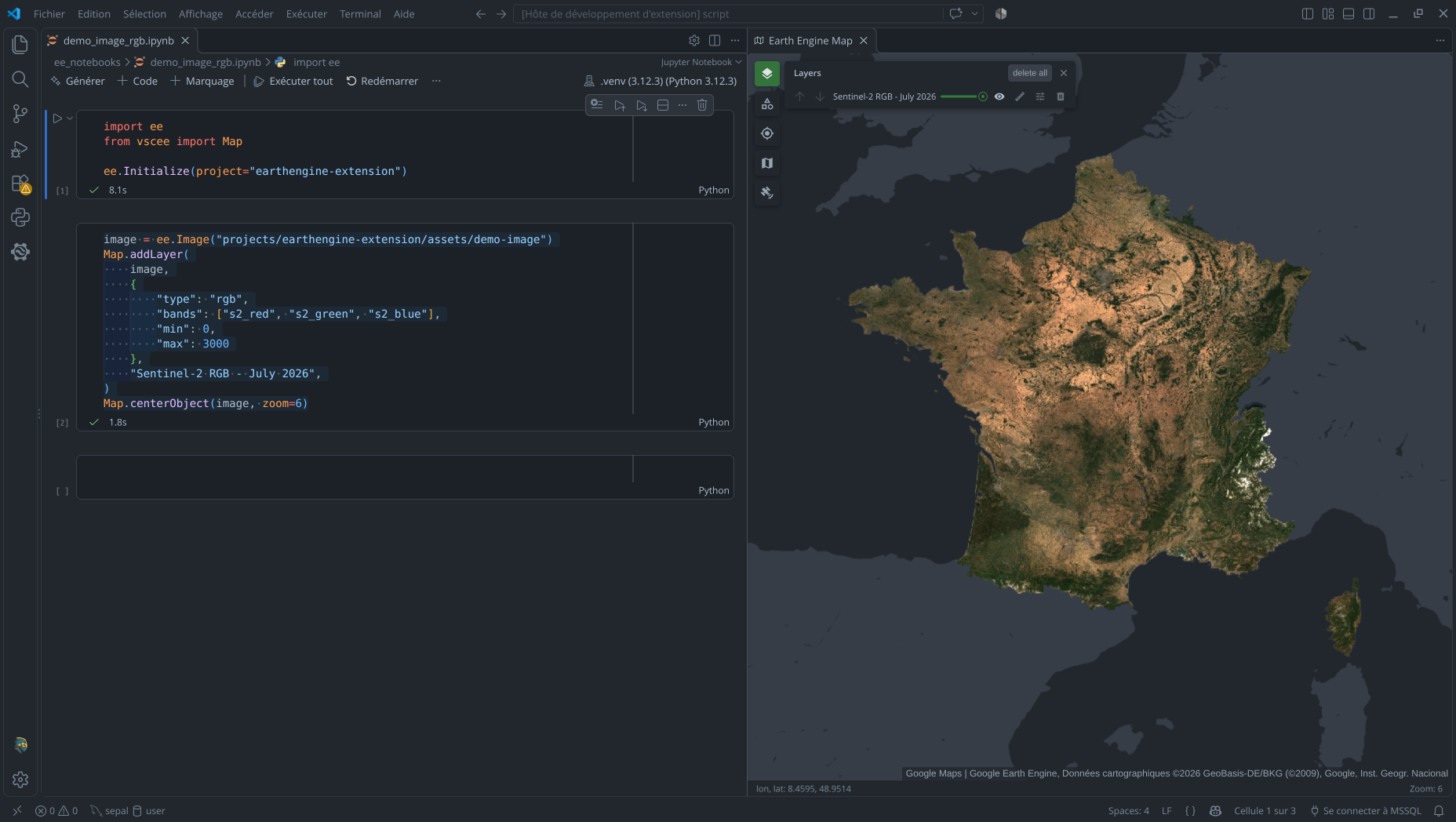
See Image > RGB in the Interactive Map.
HSV
HSV rendering interprets three bands as hue, saturation, and value. Set type to
"hsv", provide three bands, and set the corresponding min and max ranges. Each
band is normalized to 0–1 before the image is converted to RGB for display.
image = ee.Image("projects/earthengine-extension/assets/demo-image")
Map.addLayer(
    image,
    {
        "type": "hsv",
        "bands": ["hsv_hue", "hsv_saturation", "hsv_value"],
        "min": [0, 0, 0],
        "max": [1, 1, 1],
    },
    "Copernicus DEM terrain HSV",
)
Map.centerObject(image, zoom=6)
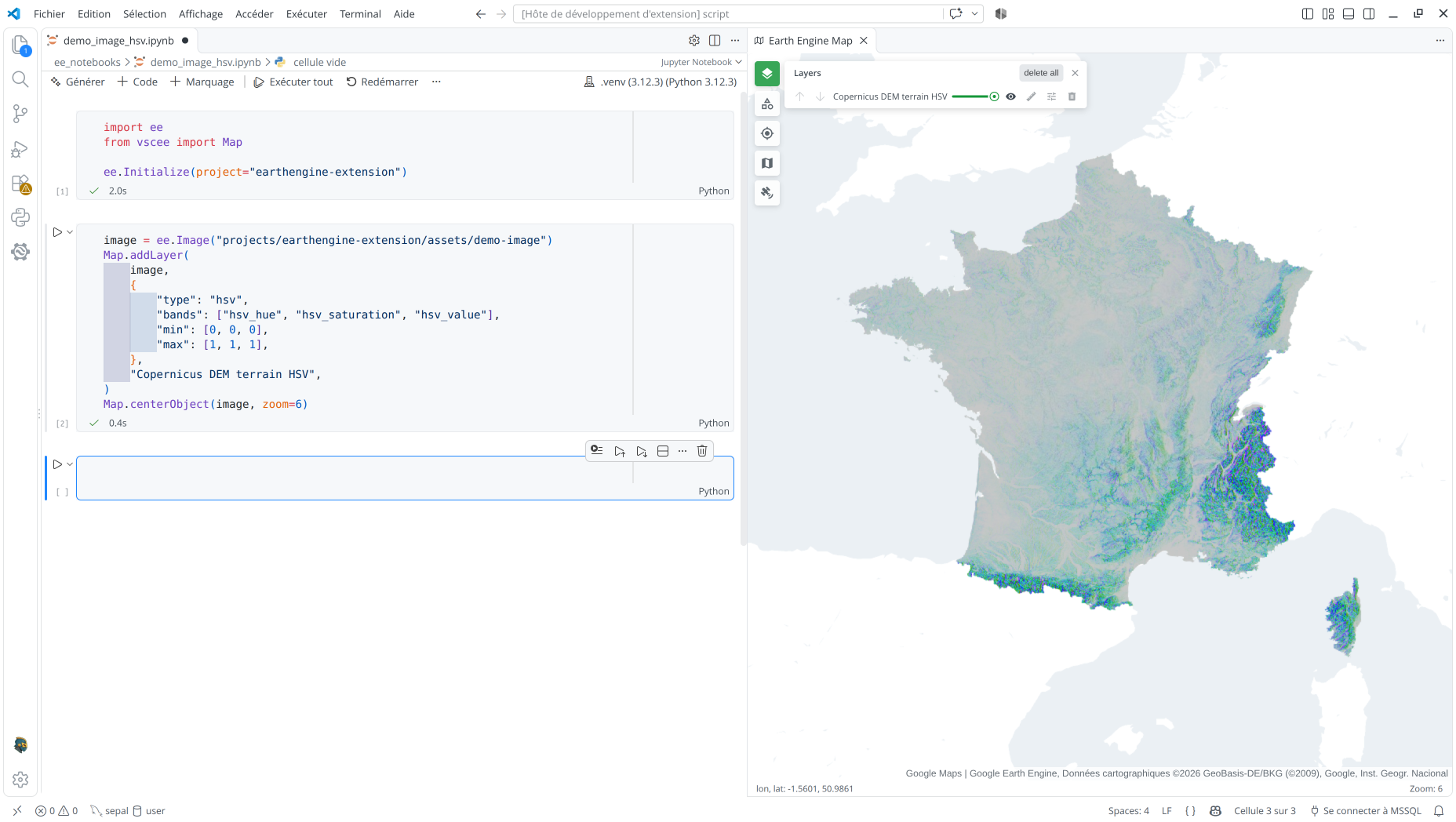
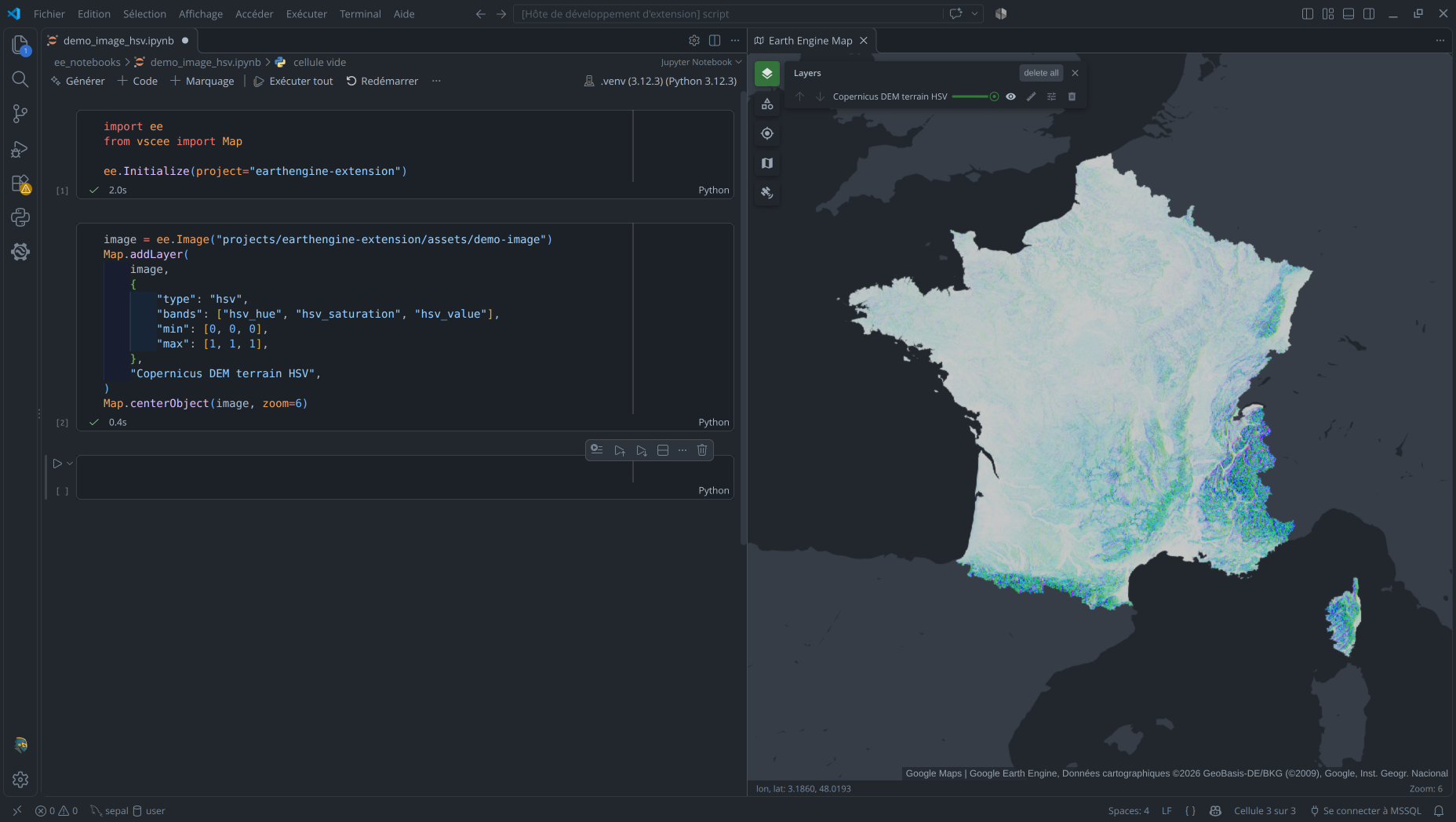
See Image > HSV in the Interactive Map.
Continuous
Continuous rendering maps values in one band through a color palette. Provide the band,
a min and max stretch range, and at least two palette colors. A palette without
values or breaks is interpreted as continuous, with no type required.
image = ee.Image("projects/earthengine-extension/assets/demo-image")
Map.addLayer(
    image,
    {
        "type": "continuous",
        "bands": ["viirs_ndvi"],
        "min": 0.0199,
        "max": 1.093,
        "palette": ["#8c5a3c", "#e2c76a", "#d9e9aa", "#75b878", "#126c46"],
    },
    "VIIRS NDVI - July 2026",
)
Map.centerObject(image, zoom=6)
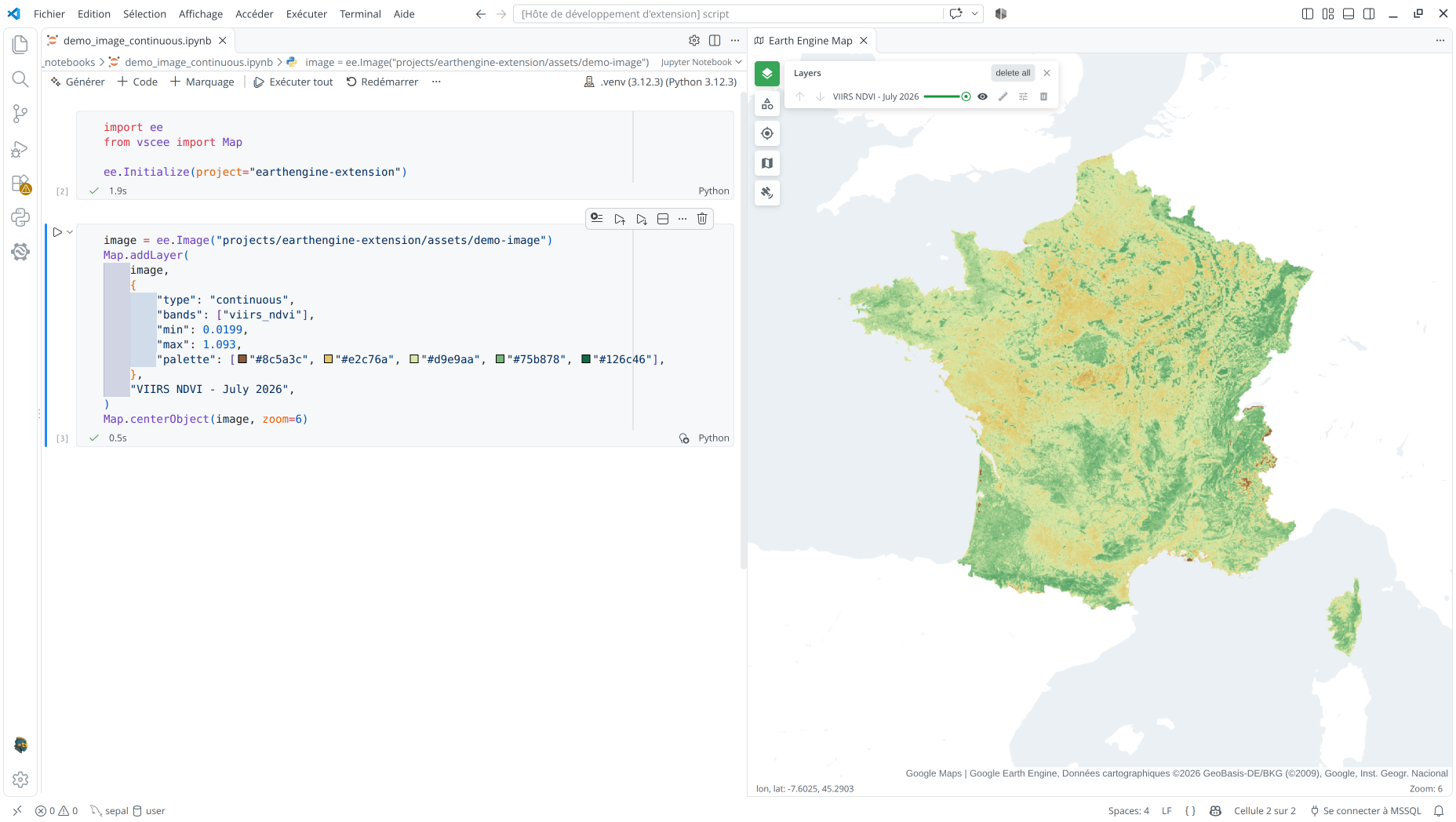
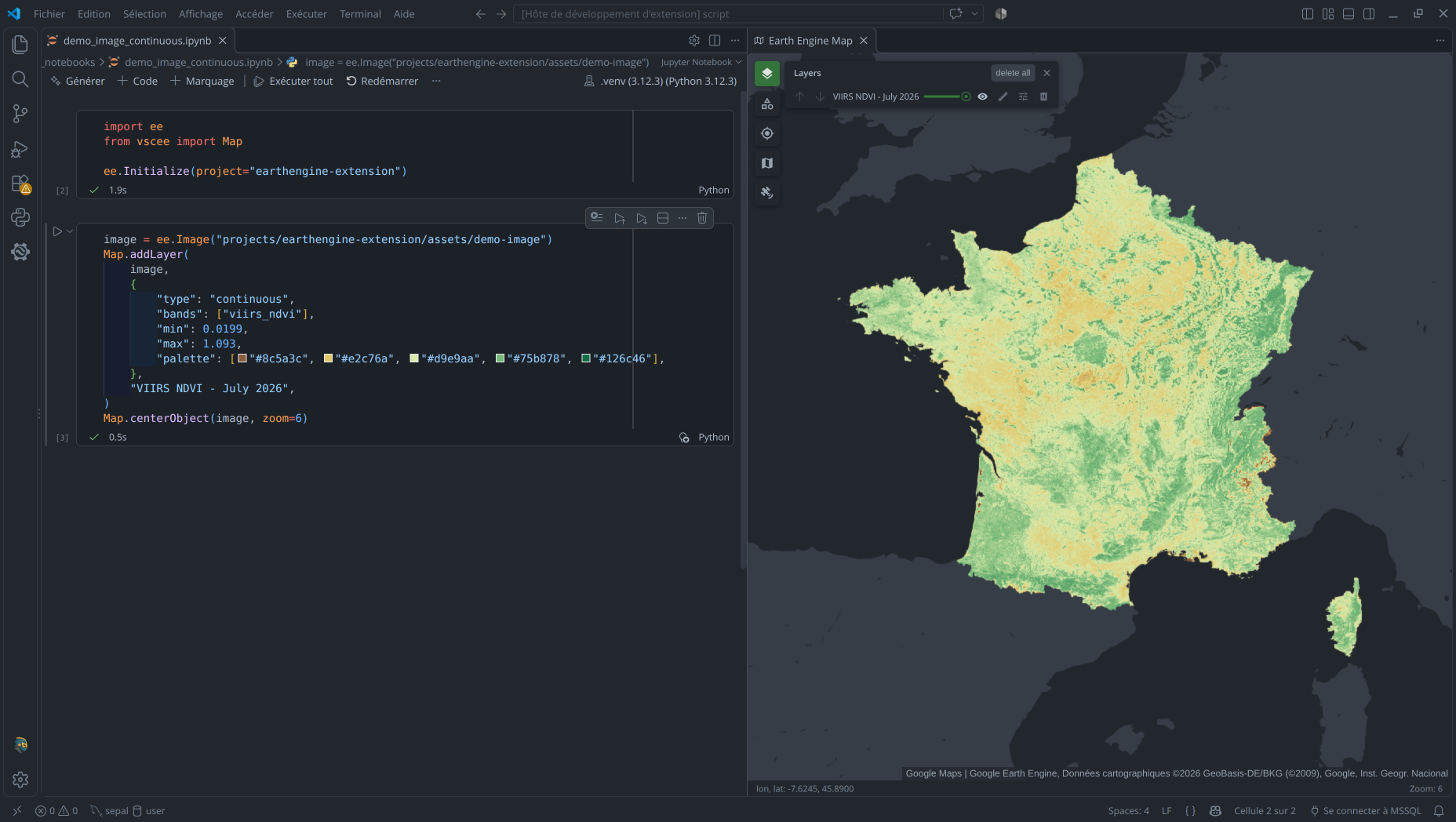
See Image > Continuous in the Interactive Map.
Categorical
Categorical rendering assigns one color to each exact numeric pixel value in one band.
Supply the distinct values and one palette color per value; optional labels appear in
the map scale. Values not listed are masked.
image = ee.Image("projects/earthengine-extension/assets/demo-image")
Map.addLayer(
    image,
    {
        "type": "categorical",
        "bands": ["corine_class_index"],
        "values": [
            0, 1, 2, 3, 4, 5, 6, 7, 8, 9, 10, 11, 12, 13, 14, 15,
            16, 17, 18, 19, 20, 21, 22, 23, 24, 25, 26, 27, 28, 29, 30, 31,
            32, 33, 34, 35, 36, 37, 38, 39, 40, 41, 42, 43,
        ],
        "palette": [
            "#e6004d", "#ff0000", "#cc4df2", "#cc0000", "#e6cccc", "#e6cce6", "#a600cc", "#a64dcc",
            "#ff4dff", "#ffa6ff", "#ffe6ff", "#ffffa8", "#ffff00", "#e6e600", "#e68000", "#f2a64d",
            "#e6a600", "#e6e64d", "#ffe6a6", "#ffe64d", "#e6cc4d", "#f2cca6", "#80ff00", "#00a600",
            "#4dff00", "#ccf24d", "#a6ff80", "#a6e64d", "#a6f200", "#e6e6e6", "#cccccc", "#ccffcc",
            "#000000", "#a6e6cc", "#a6a6ff", "#4d4dff", "#ccccff", "#e6e6ff", "#a6a6e6", "#00ccf2",
            "#80f2e6", "#00ffa6", "#a6ffe6", "#e6f2ff",
        ],
        "labels": [
            "111", "112", "121", "122", "123", "124", "131", "132",
            "133", "141", "142", "211", "212", "213", "221", "222",
            "223", "231", "241", "242", "243", "244", "311", "312",
            "313", "321", "322", "323", "324", "331", "332", "333",
            "334", "335", "411", "412", "421", "422", "423", "511",
            "512", "521", "522", "523",
        ],
    },
    "CORINE land cover - categorical",
)
Map.centerObject(image, zoom=6)
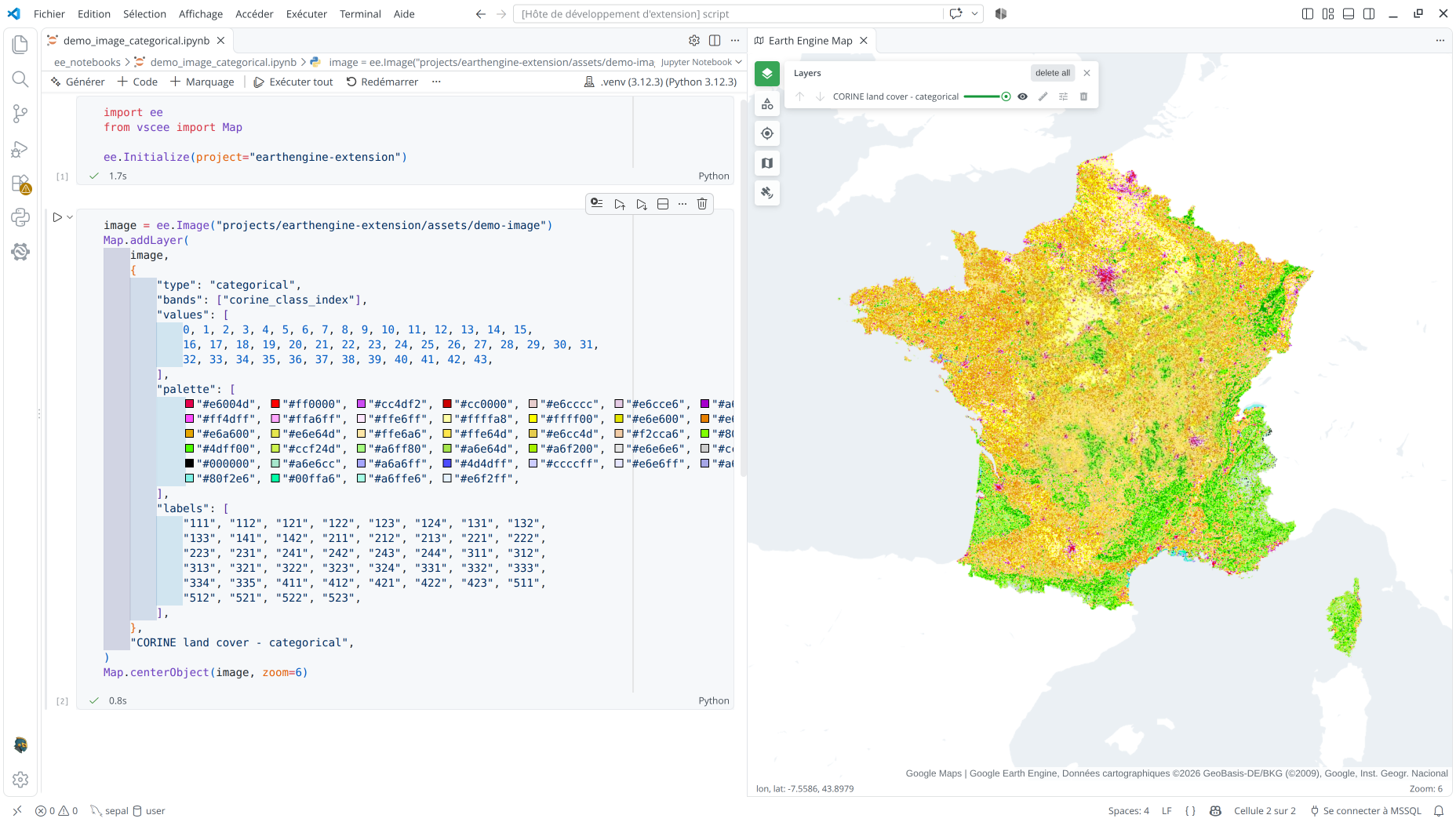
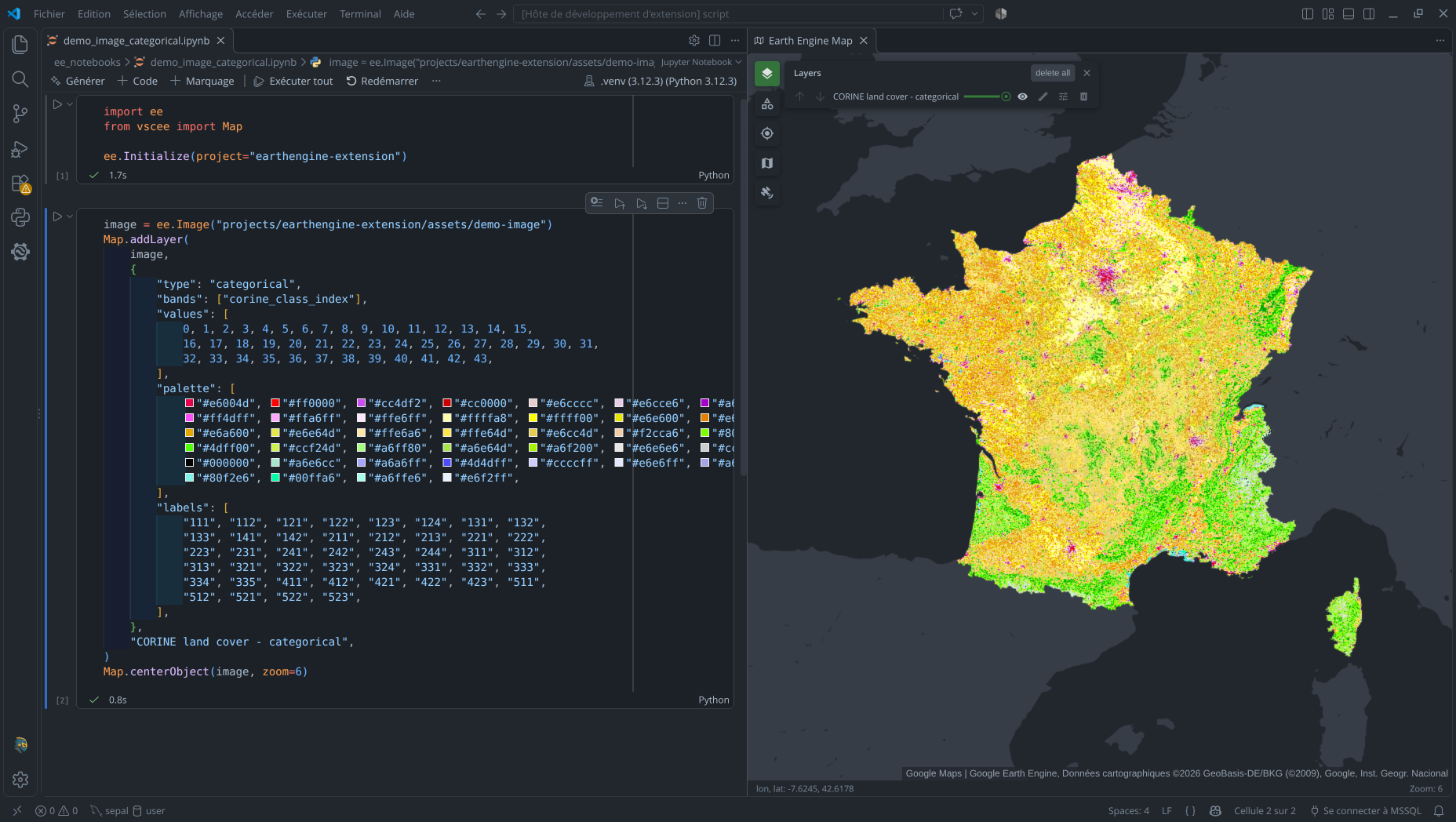
See Image > Categorical in the Interactive Map.
Intervals
Interval rendering assigns a palette color to each range in one band. breaks must be
strictly increasing and have exactly one more value than the number of colors. Each
interval includes its lower bound and excludes its upper bound; optional labels appear
in the map scale.
image = ee.Image("projects/earthengine-extension/assets/demo-image")
Map.addLayer(
    image,
    {
        "bands": ["era5_tmax_c"],
        "breaks": [
            -273.15, -40, -35, -30, -25, -20, -17.5, -15,
            -10, -5, -2.5, 0, 5, 10, 15, 20,
            25, 30, 32.5, 35, 37.5, 40, 45, 100,
        ],
        "palette": [
            "#BA68C8", "#8E24AA", "#6A1B9A", "#7E57C2", "#B39DDB", "#ccd0ed", "#1A237E", "#0D47A1",
            "#1565C0", "#03A9F4", "#00ffff", "#1B5E20", "#43A047", "#8BC34A", "#FFF176", "#FFCA28",
            "#FFA000", "#FF6F00", "#cd2000", "#96132d", "#fab2f5", "#F06292", "#E91E63",
        ],
    },
    "ERA5-Land temperature - intervals",
)
Map.centerObject(image, zoom=6)
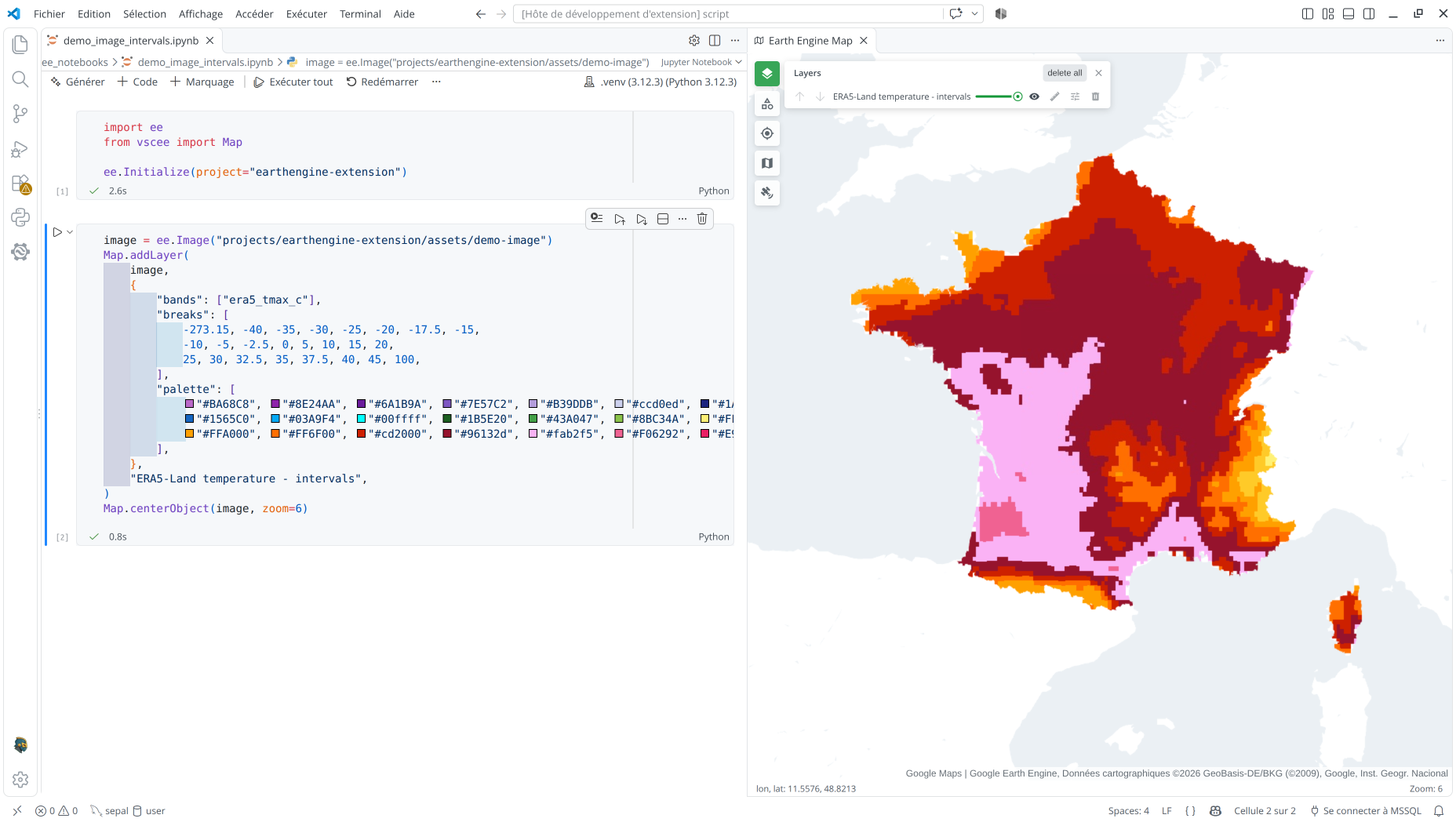
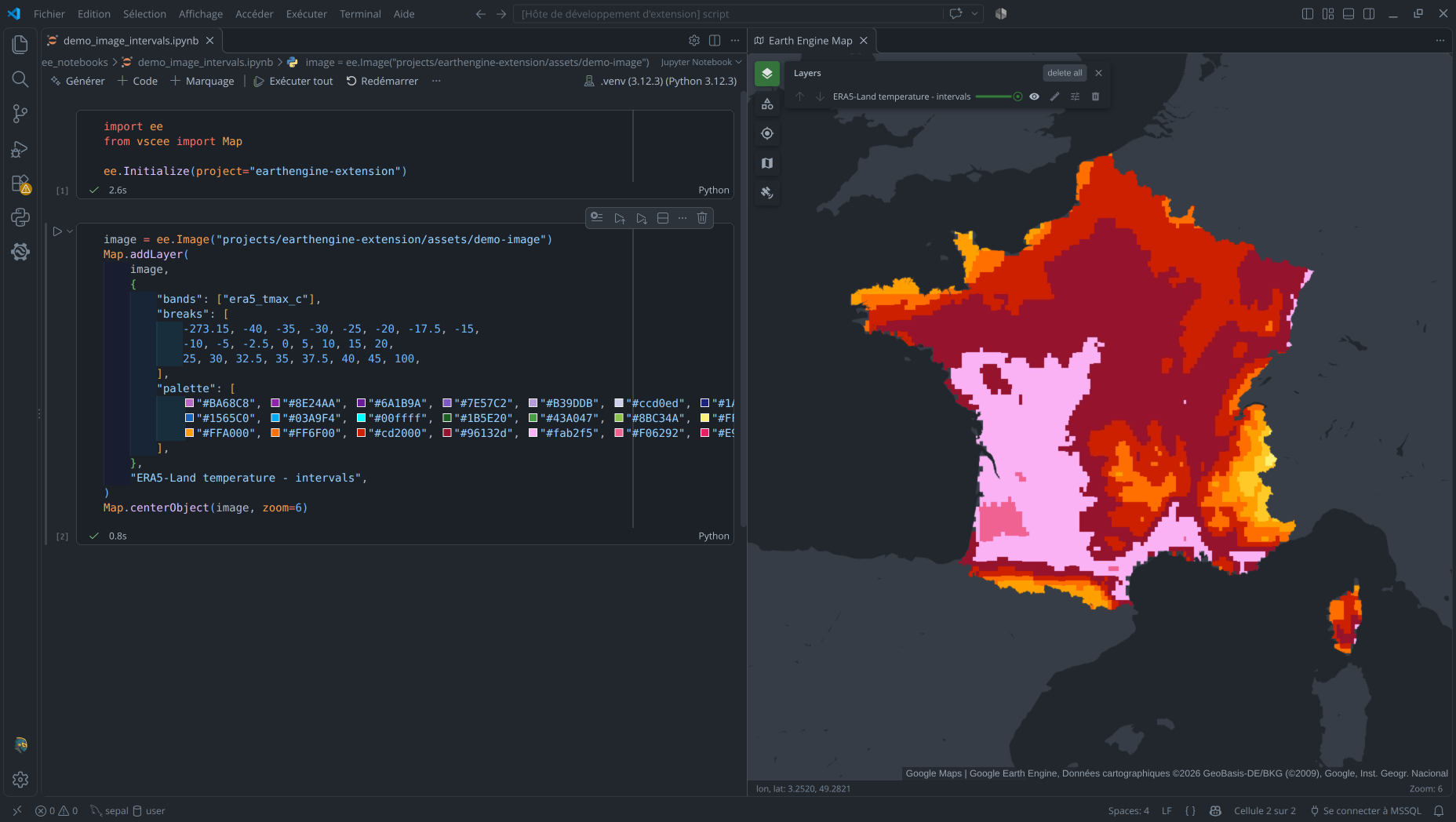
See Image > Intervals in the Interactive Map.
FeatureCollection
For feature collections, bands is replaced by a feature property. Uniform styling
does not require a property; property-based modes use one selected property. Palette
colors must be six-digit hex RGB, with or without a leading #.
Uniform
Use color for outlines, fillColor for polygon fills, width for line width, and
pointSize for points. Fill is transparent by default.
features = ee.FeatureCollection("projects/earthengine-extension/assets/demo-collection")
Map.addLayer(
    features,
    {
        "type": "uniform",
        "color": "#008000",
        "fillColor": "#FFFFFF",
        "width": 2},
    "Demo collection - uniform",
)
Map.centerObject(features, zoom=6)
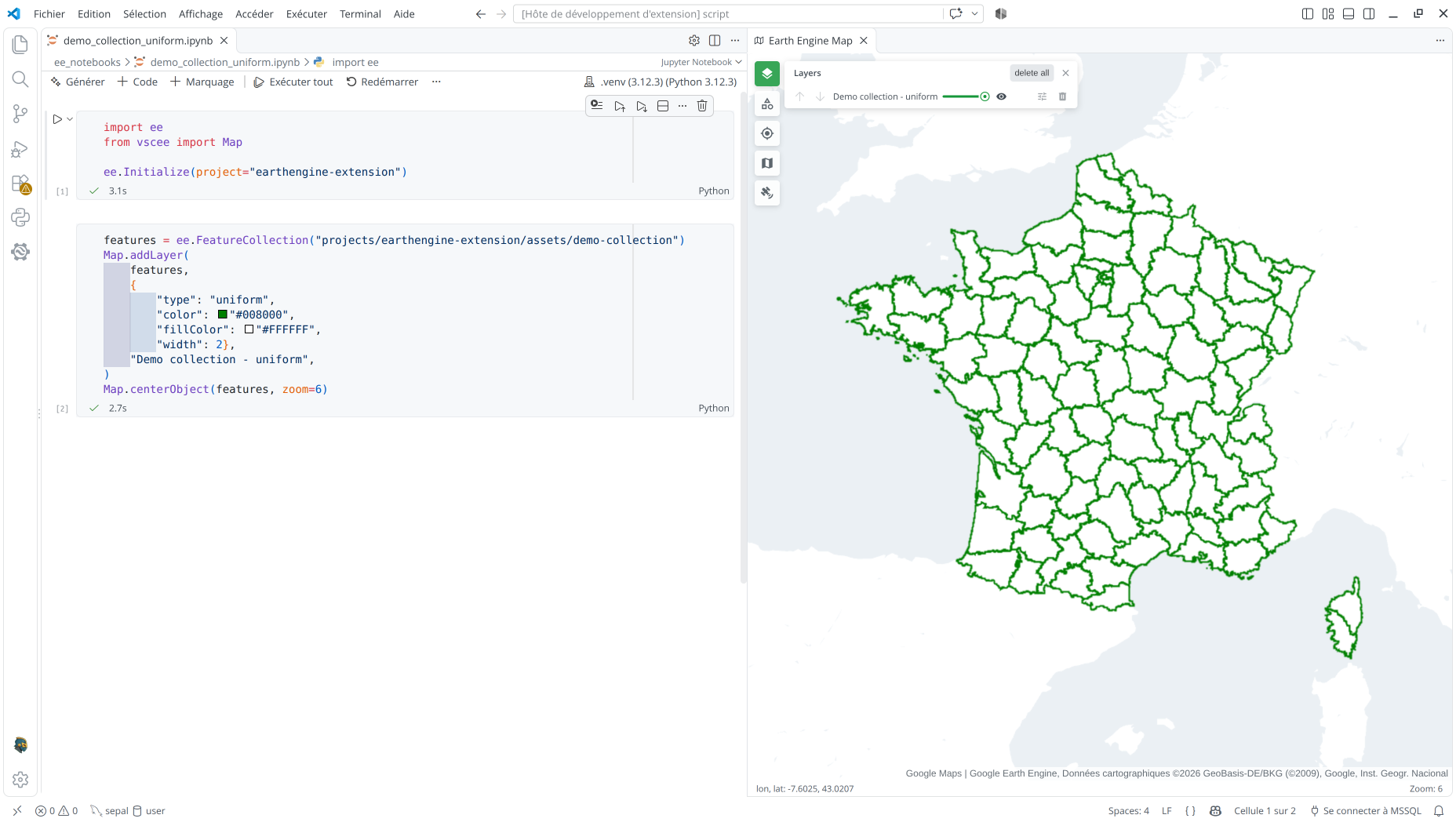
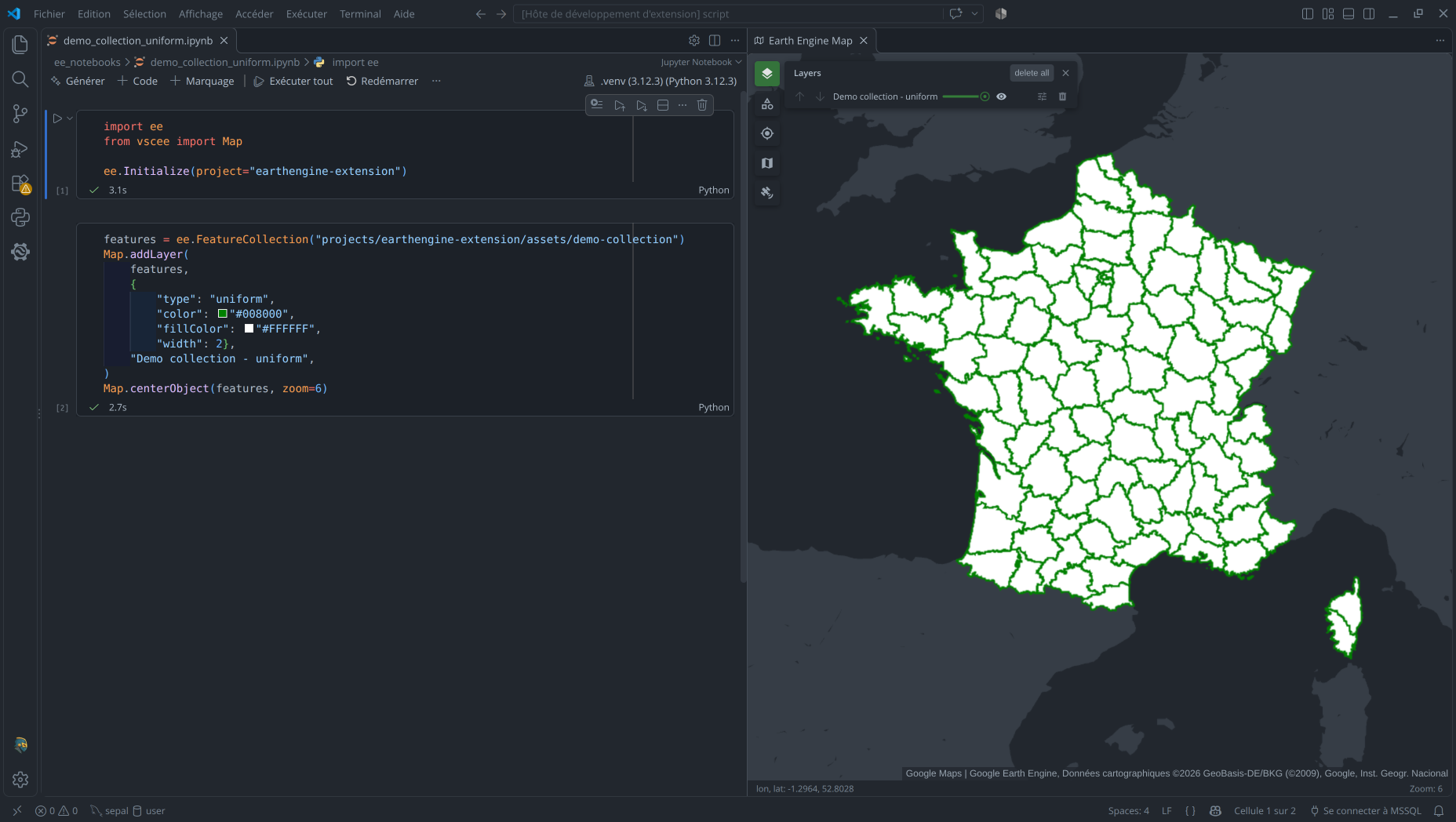
See FeatureCollection > Uniform in the Interactive Map.
Continuous
Map a numeric property between min and max through a palette of at least two colors:
features = ee.FeatureCollection("projects/earthengine-extension/assets/demo-collection")
Map.addLayer(
    features,
    {
        "type": "continuous",
        "property": "july_mean_daily_precip_mm",
        "min": 0,
        "max": 3,
        "palette": ["#f7fbff", "#c6dbef", "#6baed6", "#2171b5", "#08306b"],
    },
    "July 2026 mean daily precipitation - continuous",
)
Map.centerObject(features, zoom=6)
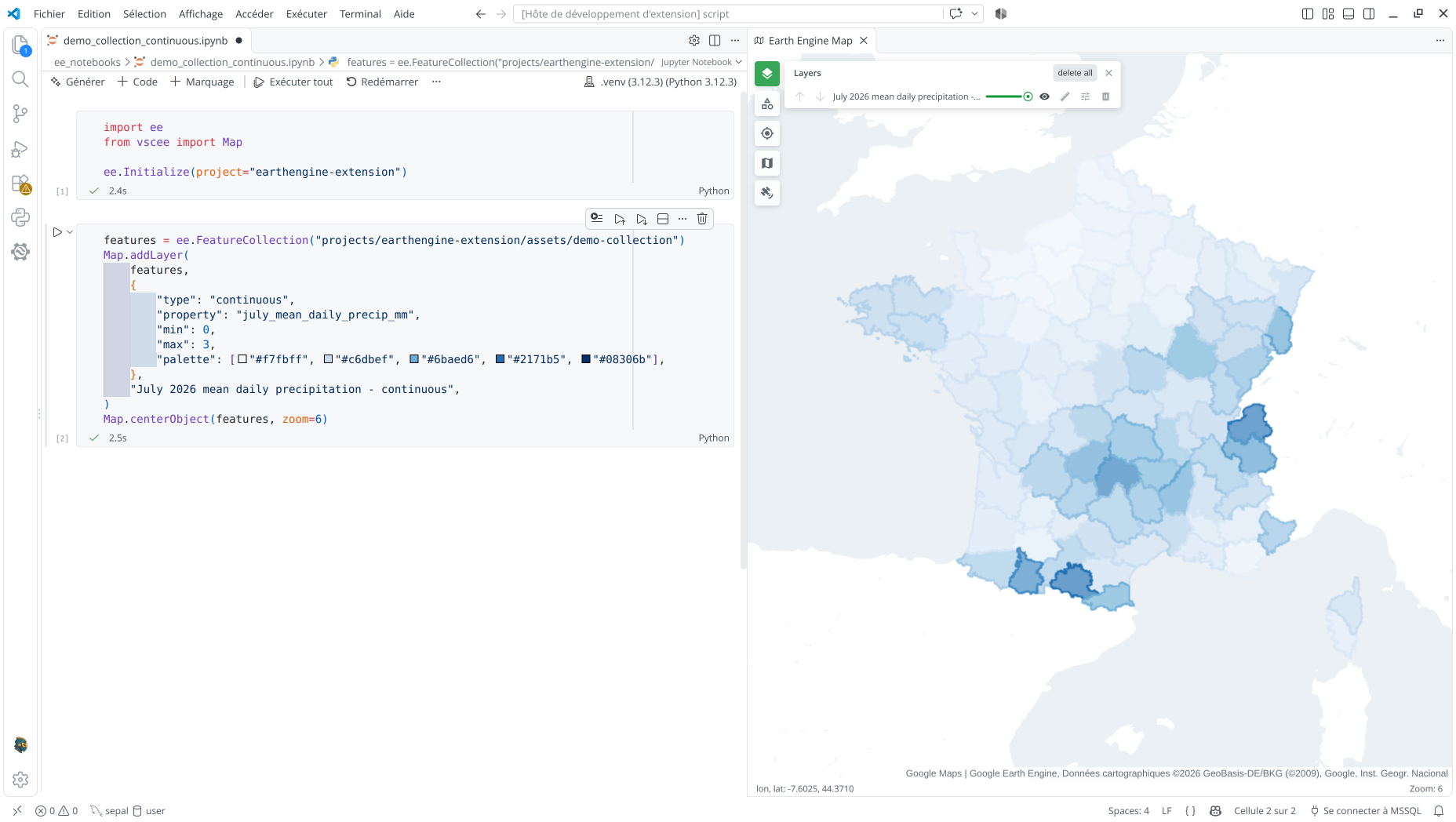
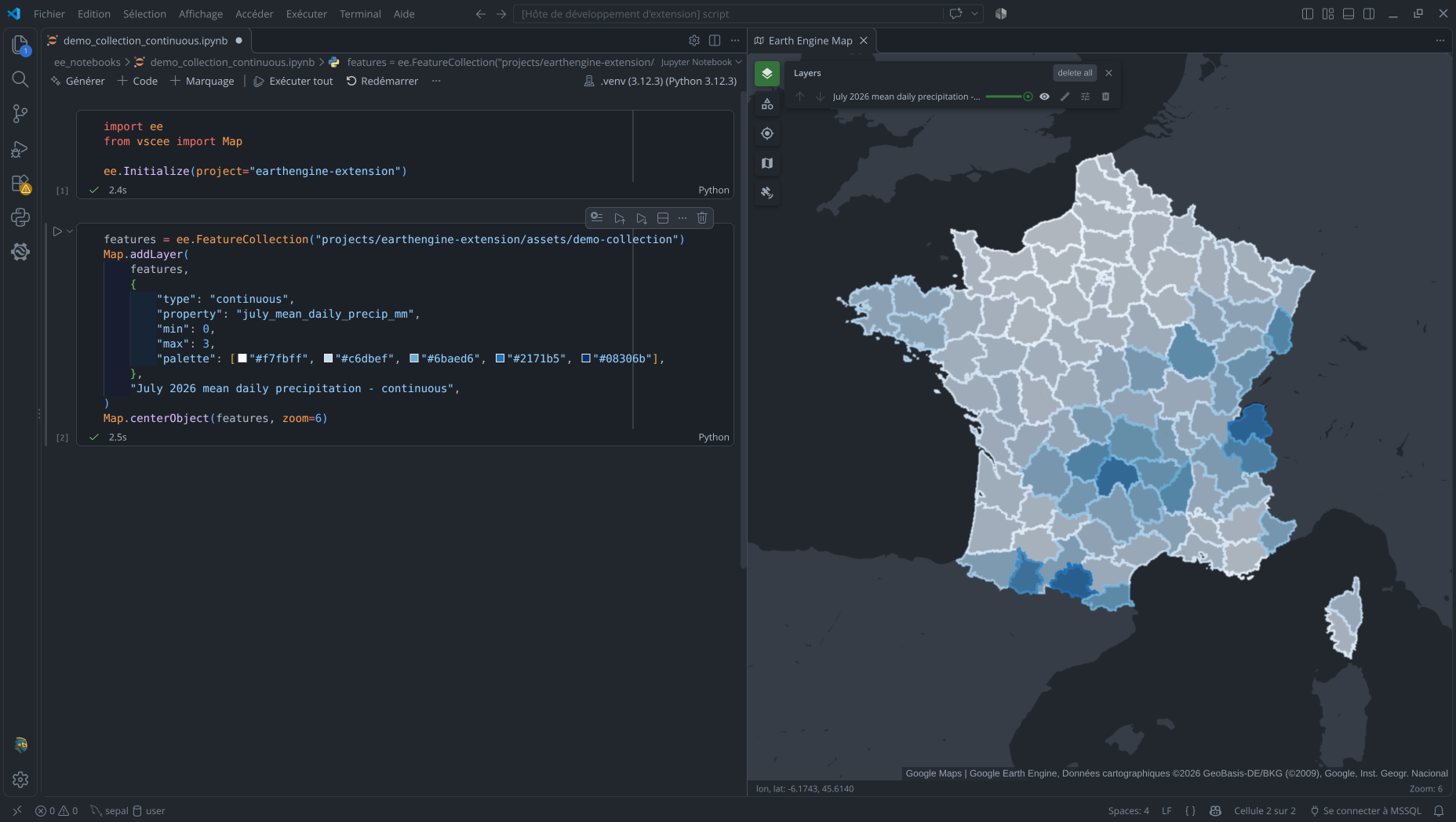
See FeatureCollection > Continuous in the Interactive Map.
Categorical
Map exact numeric or string property values to colors with one distinct value and one
palette color per class. Optional labels name the classes; unlisted values are not
drawn.
features = ee.FeatureCollection("projects/earthengine-extension/assets/demo-collection")
Map.addLayer(
    features,
    {
        "type": "categorical",
        "property": "corine_majority",
        "values": [
            111, 112, 121, 122, 123, 124, 131, 132,
            133, 141, 142, 211, 212, 213, 221, 222,
            223, 231, 241, 242, 243, 244, 311, 312,
            313, 321, 322, 323, 324, 331, 332, 333,
            334, 335, 411, 412, 421, 422, 423, 511,
            512, 521, 522, 523,
        ],
        "palette": [
            "#e6004d", "#ff0000", "#cc4df2", "#cc0000", "#e6cccc", "#e6cce6", "#a600cc", "#a64dcc",
            "#ff4dff", "#ffa6ff", "#ffe6ff", "#ffffa8", "#ffff00", "#e6e600", "#e68000", "#f2a64d",
            "#e6a600", "#e6e64d", "#ffe6a6", "#ffe64d", "#e6cc4d", "#f2cca6", "#80ff00", "#00a600",
            "#4dff00", "#ccf24d", "#a6ff80", "#a6e64d", "#a6f200", "#e6e6e6", "#cccccc", "#ccffcc",
            "#000000", "#a6e6cc", "#a6a6ff", "#4d4dff", "#ccccff", "#e6e6ff", "#a6a6e6", "#00ccf2",
            "#80f2e6", "#00ffa6", "#a6ffe6", "#e6f2ff",
        ],
        "labels": [
            "111", "112", "121", "122", "123", "124", "131", "132",
            "133", "141", "142", "211", "212", "213", "221", "222",
            "223", "231", "241", "242", "243", "244", "311", "312",
            "313", "321", "322", "323", "324", "331", "332", "333",
            "334", "335", "411", "412", "421", "422", "423", "511",
            "512", "521", "522", "523",
        ],
    },
    "CORINE majority land cover - categorical",
)
Map.setCenter(2.4, 46.6, 6)
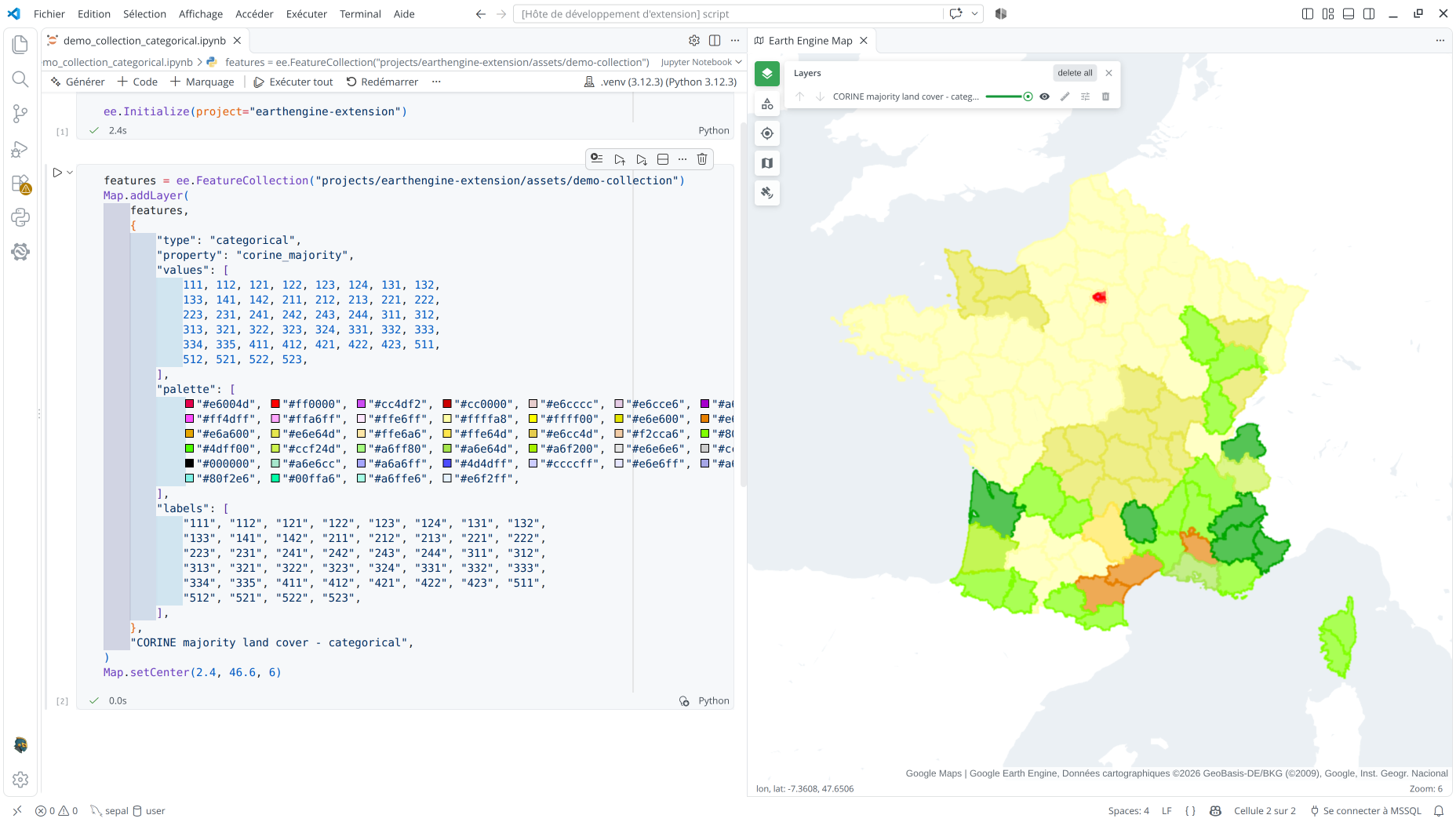
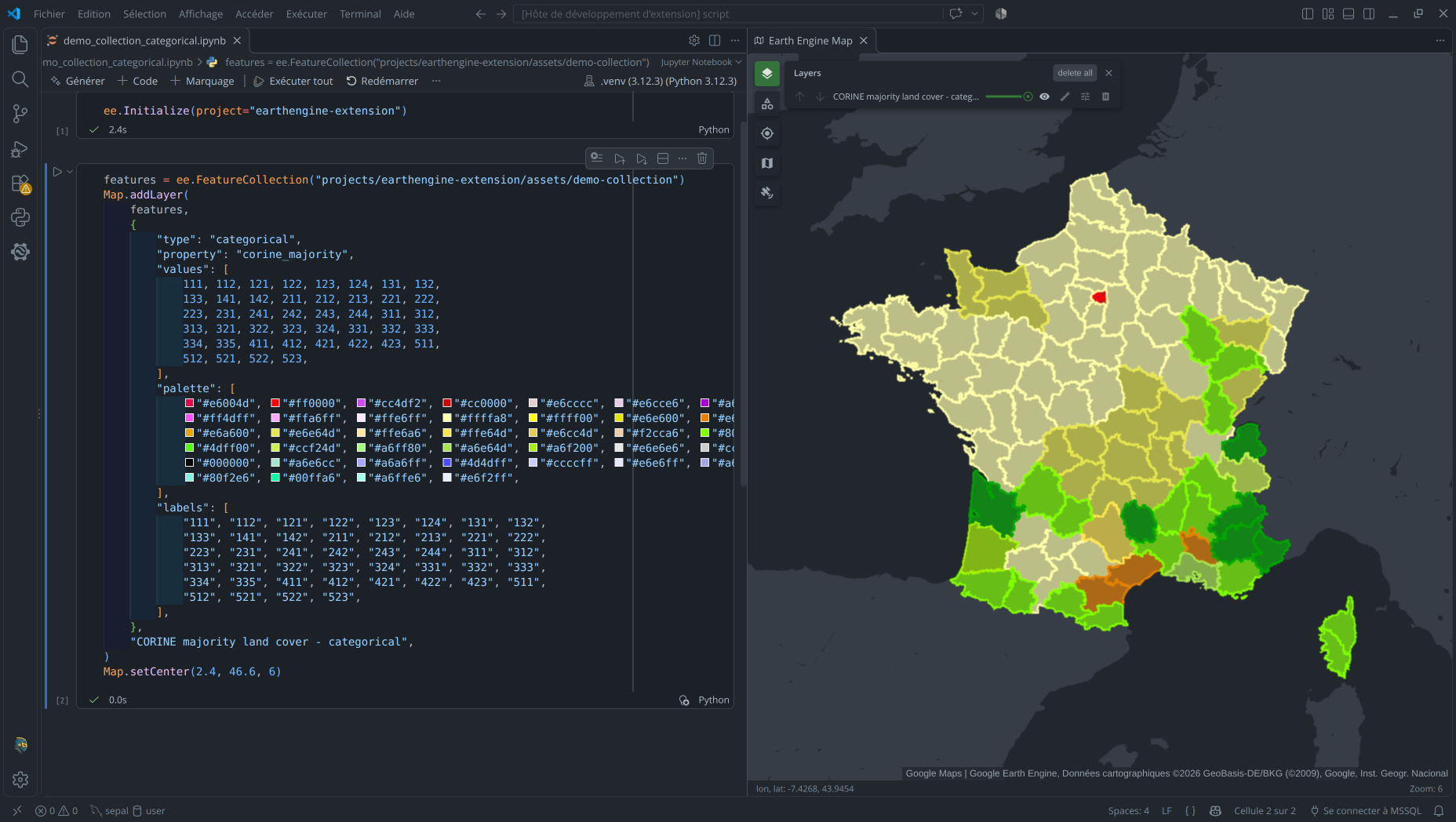
See FeatureCollection > Categorical in the Interactive Map.
Intervals
Map a numeric property to one color per range. breaks must be strictly increasing and
have exactly one more value than the palette colors; each interval includes its lower
bound and excludes its upper bound.
features = ee.FeatureCollection("projects/earthengine-extension/assets/demo-collection")
Map.addLayer(
    features,
    {
        "type": "intervals",
        "property": "july_mean_temp_c",
        "breaks": [
            -273.15, -40, -35, -30, -25, -20, -17.5, -15,
            -10, -5, -2.5, 0, 5, 10, 15, 20,
            25, 30, 32.5, 35, 37.5, 40, 45, 100,
        ],
        "palette": [
            "#BA68C8", "#8E24AA", "#6A1B9A", "#7E57C2", "#B39DDB", "#ccd0ed", "#1A237E", "#0D47A1",
            "#1565C0", "#03A9F4", "#00ffff", "#1B5E20", "#43A047", "#8BC34A", "#FFF176", "#FFCA28",
            "#FFA000", "#FF6F00", "#cd2000", "#96132d", "#fab2f5", "#F06292", "#E91E63",
        ],
    },
    "July 2026 mean temperature - intervals",
)
Map.setCenter(2.4, 46.6, 6)
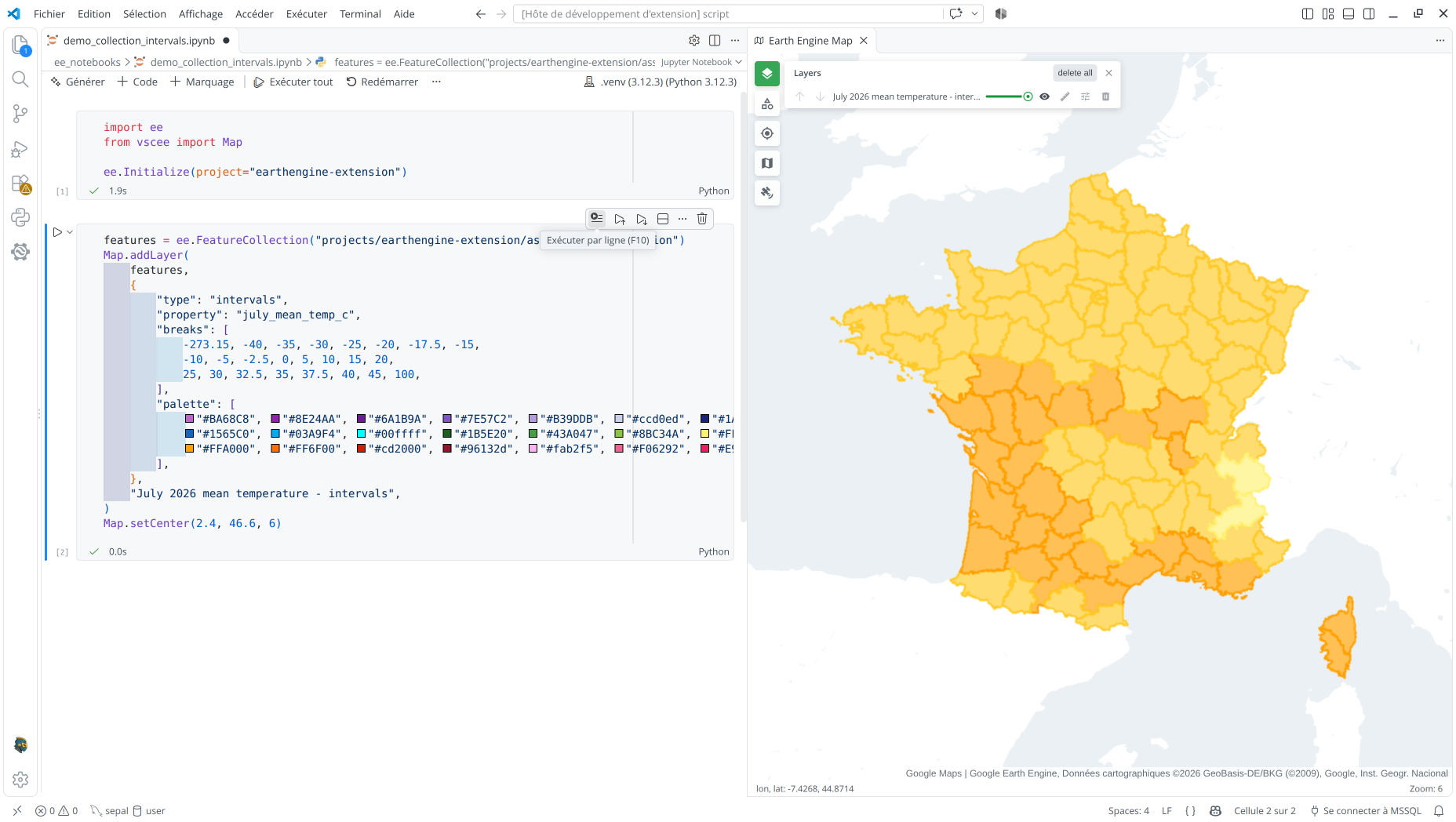
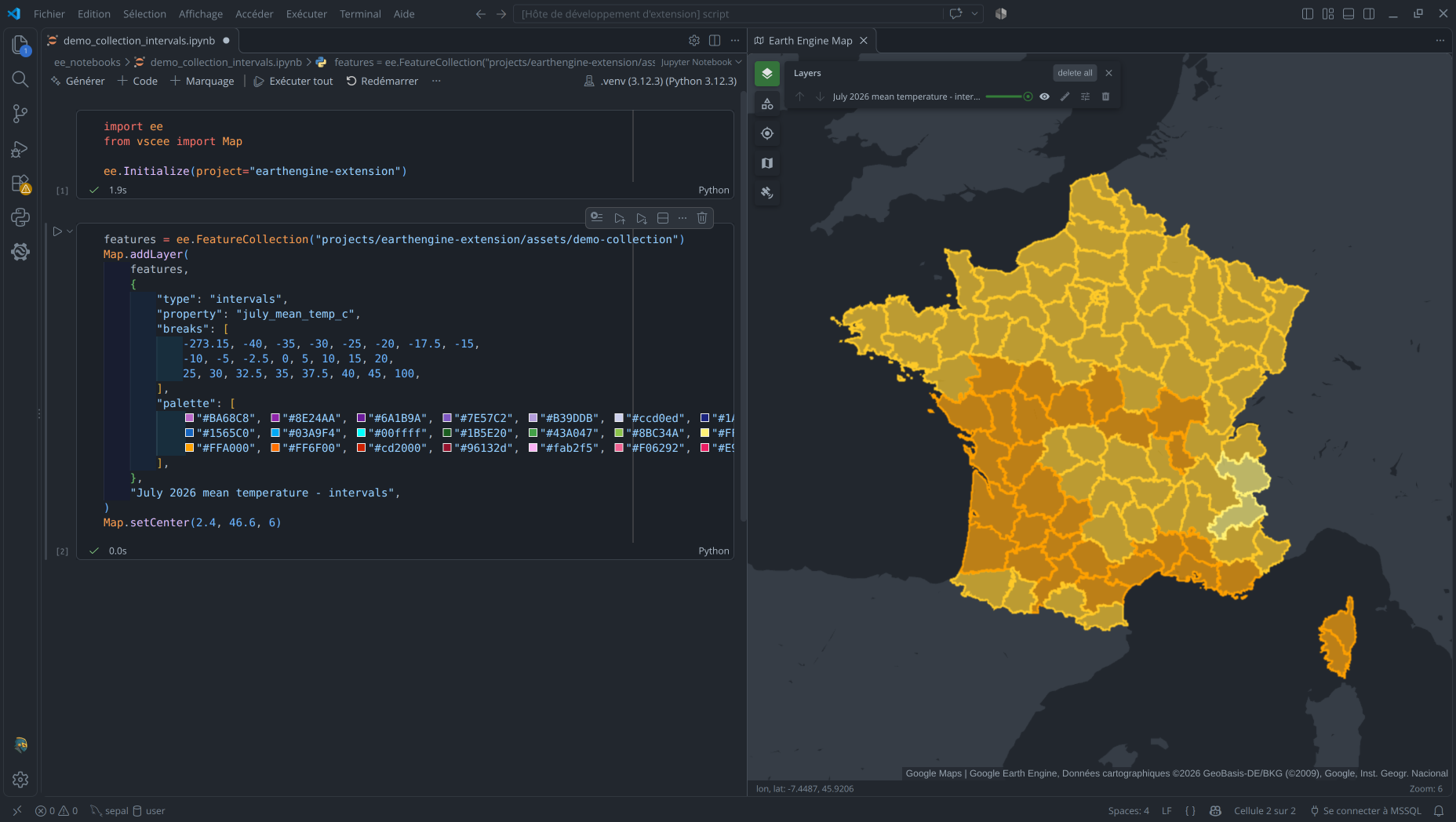
See FeatureCollection > Intervals in the Interactive Map.
Map.centerObject
Prototype
Map.centerObject(ee_object, zoom=None)
Centers and, optionally, zooms the map on the bounds of an ee.Image,
ee.ImageCollection, ee.FeatureCollection, ee.Feature, or ee.Geometry. Computing
the bounds calls getInfo(), so it requires network access to Earth Engine.
Map.setCenter
Prototype
Map.setCenter(lon, lat, zoom=None)
Sets the map viewport to explicit coordinates without querying Earth Engine.
Map.clear
Prototype
Map.clear()
Removes every layer currently on the map.